
Version 1.0.0
Wave Theory
How to use Wave Theory, the MIDI plugin that turns wavetables into melodies – sequencers, memory keys, wavetable loading & DAW setup.
Contents
01 / Welcome
Introduction
Wave Theory is an inspiration machine. It creates melodies in a new way, by turning wavetables into musical lines. While that may sound complex, it is actually very intuitive and fast. The focus is on workflow and musical inspiration. You’ll be coming up with some inspiring melodies within minutes.
Wave Theory is optimized for both performance and songwriting. The workflow will allow you to generate and store melodies quickly, twist and mutate them, and then recall them at the touch of a button. Fair warning: it can get addictive.
We hope you have fun with Wave Theory, and find inspiration and musical joy along the journey.
from,
BangZilla & Boxed Ear
02 / Overview
What Is Wave Theory
Whatever you know about wavetables, forget it!
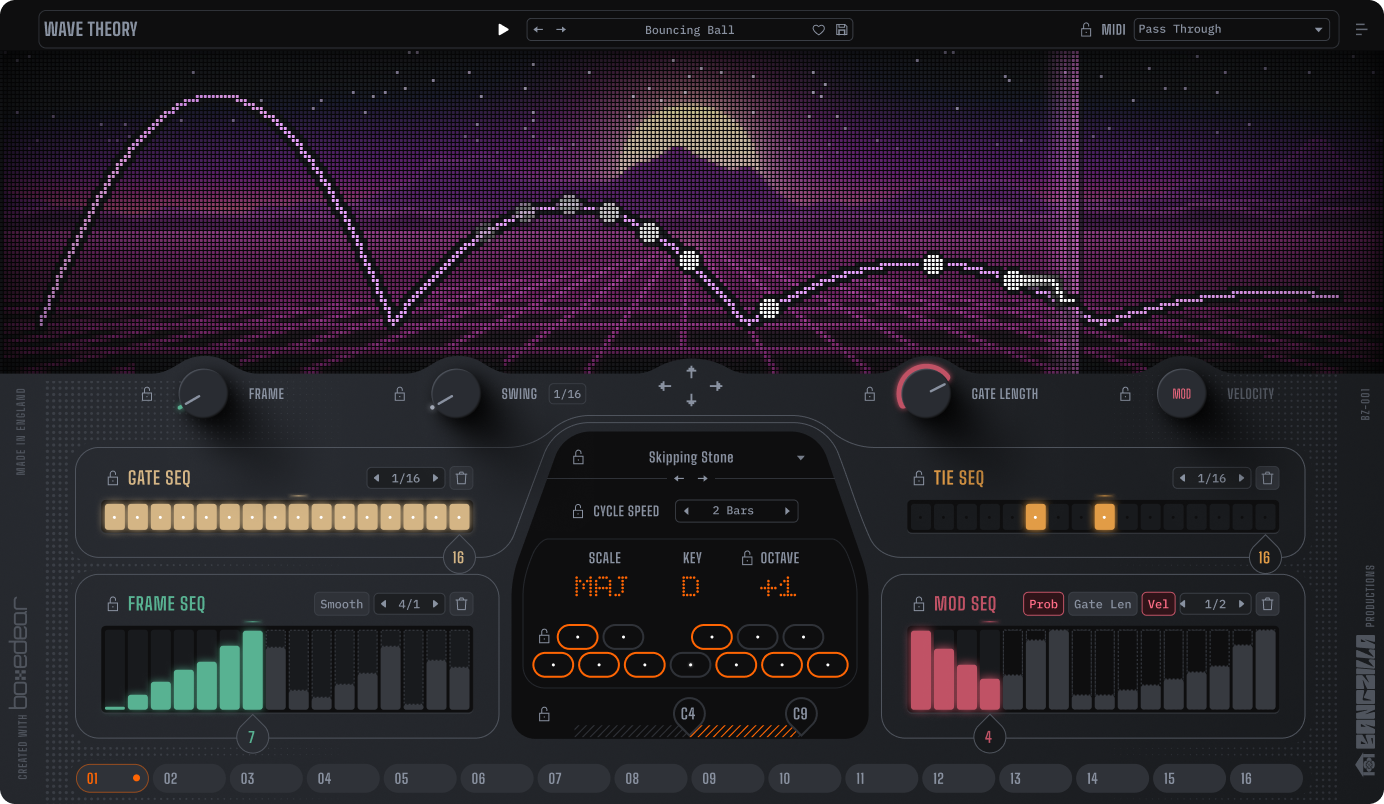
Wave Theory is a MIDI sequencer plugin that turns wavetables into melodies. A tempo-synced playhead cycles through a wavetable, and at each step in the sequencer, the wave’s height is mapped to a pitch. The contour you see in the wavetable becomes the melody.
Four sequencers help shape that melody in different ways – gate/tie, velocity, probability, gate length, and perhaps most importantly, frame variation (the wavetable index). The output is scale-locked so the result is always musical.
Wave Theory is designed with performance in mind. Sixteen memory slots let you save the state of the plugin for live recall. You can automate these memory slots via MIDI, and lock parts of the plugin that you wish to remain consistent, making Wave Theory ideal for both composition and live performance.
Remember, Wave Theory is a MIDI plugin. It does not generate audio itself, but makes a perfect partner to your favorite synthesizer, whether it be hardware or software.
03 / Get going
Quick Start
- Load Wave Theory in front of a synthesizer and route Wave Theory’s MIDI out to your synthesizer’s MIDI in. See the DAW guides below.
- Press Play in your DAW. A melody starts.
- Turn the Frame knob to change the wavetable index. Click the < > buttons next to the wavetable name in the central panel to load a new wavetable.
- Turn steps on and off in the Gate Sequencer to change when notes fire.
- Adjust Root Note and Scale inside the central quantizer to set the key.
- Experiment with the Frame Sequencer to change the wavetable’s index.
- Find a melody you like? Press one of the 16 Memory Keys to store it.
- Want to lock an element in? Just click the Lock icon next to any part of the interface to stop it changing when you load new presets.
04 / The panel
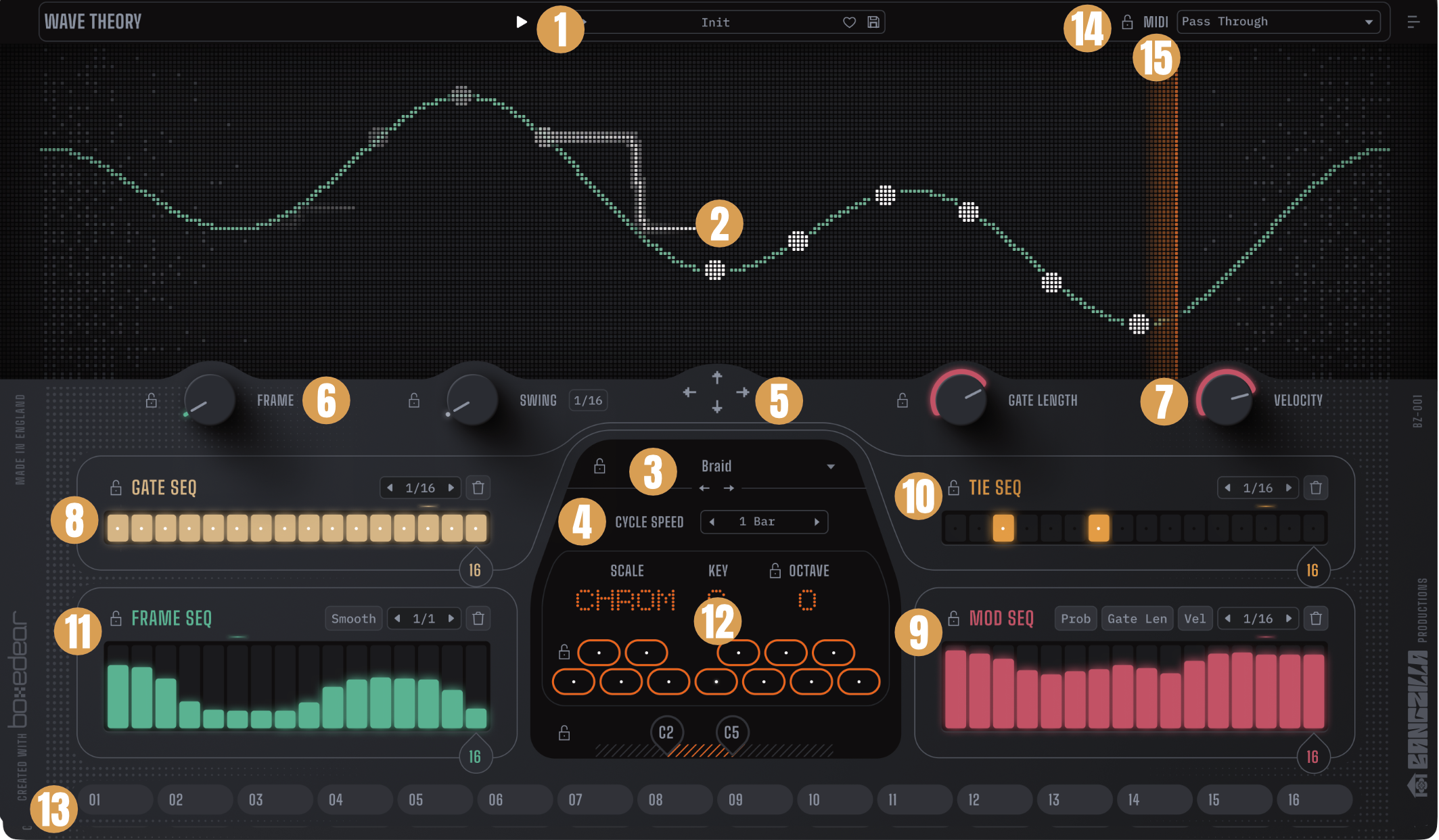
Interface Breakdown
- Preset bar – load, save, favorite, and browse presets.
- Visualizer – animated waveform display showing the current wavetable cycle and playhead.
- Wavetable selector – choose the active wavetable. Includes a factory library and a user folder.
- Cycle speed – sets the length of one full pass through the waveform.
- Nudge controls – shift the wave horizontally and vertically or click in the center to reset.
- Frame control – manually move through the wavetable.
- Velocity, Gate Length, Swing – sets the global value for these parameters.
- Gate Sequencer – controls when notes trigger.
- Mod Sequencer – modulates either velocity, probability, gate length, or any combination of the three.
- Tie Sequencer – joins notes into legato phrases (great for acid style slides).
- Frame Sequencer – animates the wavetable index with a smooth option to glide from one step to the next.
- Quantizer – root note, scale, octave transpose, and min/max note range set the rules for MIDI output.
- Memory Keys – sixteen slots to snapshot and recall melodies (locked items will not be recalled).
- Lock control – various parts of the system can be locked to stop them changing when you load a new preset or memory key.
- MIDI Input mode – use MIDI to transpose, recall Memory Keys, or change the Quantizer live.
05 / Shape the melody
The Sequencers
Wave Theory’s four sequencers run in parallel. Each has between 2 and 16 steps and an independent clock division.
Gate Sequencer decides which steps fire a note. Click to toggle steps on or off.
Tie Sequencer works in conjunction with the Gate Sequencer. When a step is on, the note is held into the next. Use it to build legato phrases or long held notes. If your synthesizer supports it, try enabling Legato and Slide (actual names may vary) for 303-style glides.
Frame Sequencer sweeps the wavetable frame position. Each step jumps to a different part of the wavetable, changing the melody that is generated. This sequencer works together with the global Frame parameter. Enable Smooth to interpolate between steps for gliding transitions.
Mod Sequencer is a continuous CV-style sequencer. Pick a destination using the buttons above the grid: Velocity, Probability, or Gate Length. When either Velocity or Gate Length is active, the corresponding global control is grayed out and the sequencer takes over.
Each sequencer has individual Steps and Rate controls, plus Clear to erase it (click it again to undo the Clear).
06 / Watch it move
The Visualizer
The waveform display at the top of the plugin shows the current wavetable, the playhead, and any recent note triggers. The animated background reacts to the wave shape and the speed of playback.
Click the three lines in the top left of the plugin to open the Settings menu and change the Visualizer.
07 / Snapshots
The Memory Keys
The sixteen buttons across the bottom of the plugin are memory slots. Each slot stores a complete state: every sequencer, the wavetable, the quantizer settings, every knob.
- To save – set up the plugin how you like it, then click any empty slot.
- To recall – click a populated slot.
- To clear, copy or replace – right-click for a context menu.
Use the slots to build a performance set, then switch between them live from your MIDI controller by setting MIDI Input Mode to Memory Select.
08 / Save and share
The Preset System
Presets save and load the entire plugin state to disk, including all sixteen memory slots. They live in a user-accessible folder so you can share them between sessions or with other users.
The preset bar at the top of the plugin has:
- Browse – opens the preset browser.
- < / > – step through presets in sequence.
- ♡ – toggle the current preset as a favorite.
- Save – save the current state as a new preset, or overwrite the current one.
09 / Hold it steady
The Lock System
Many sections of the interface have a small padlock icon next to their label. When you click it, that section is locked: its values stay put even when you load a new preset or recall a memory slot.
This can be incredibly useful. Lock the Quantizer then click through presets – the key and scale stay the same while everything else changes underneath. Lock the Gate Sequencer and the Cycle Speed, then recall memory slots to change melodies over a fixed rhythm. Or lock the Octave and the note range to make sure all presets stay within the right range for your synthesizer. Lock buttons are saved in DAW projects so that Wave Theory always reloads exactly as it was when you saved the project, but they are not saved in Wave Theory presets.
10 / Bring your own
Loading Your Own Wavetables
You can load your own wavetables into Wave Theory.
16-bit mono WAV files with a 2,048-sample cycle length. Any number of frames is supported. Wavetables created by Serum, Vital, and most other wavetable synths should work fine. Drop your files into the User Wavetables folder then open the Settings menu to Rescan.
- Mac –
~/Documents/BangZilla/Wave Theory/User Wavetables/ - Windows –
Documents\BangZilla\Wave Theory\User Wavetables\
11 / Play along
MIDI Input Modes
MIDI Input Mode controls how incoming MIDI notes affect the sequencer. There are five modes.
- Pass Through – in this mode, incoming MIDI does nothing in Wave Theory, but it will be passed through the plugin (merged with Wave Theory’s generated output). If you want to play on top of Wave Theory’s melodies, use this mode.
- Transpose (Pre-Quantize) – incoming notes shift the sequence in semitones before the quantizer is applied. Held notes are transposed against middle C (MIDI note 60); play a D and the whole sequence shifts up two semitones but remains quantized to the current Key and Scale.
- Transpose (Post-Quantize) – same idea, but the transpose happens after quantization. The shape of the melody is preserved exactly; only the pitch moves. Useful for performing key changes without the melody being re-quantized.
- Memory Select – incoming notes recall memory slots. Notes are mapped to slots in chromatic order across two octaves: the first sixteen consecutive semitones from the starting note recall slots 1 through 16. Empty slots are skipped silently. Use two octaves of your controller to recall the sixteen saved memory slots.
- Quantizer – incoming notes redefine the quantizer scale dynamically. Whatever notes you hold form the available pitch pool; the sequencer can only output those notes. Release everything and the sequencer falls silent until you play something. This mode is perfect for having Wave Theory follow the chords of your song like an arpeggiator.
12 / Get connected
DAW Setup Guides
Wave Theory outputs MIDI, not audio, so the setup is: load Wave Theory upstream of a synthesizer and route its MIDI output into the synth’s MIDI input. The exact mechanics differ from DAW to DAW.
Ableton Live
- Create two MIDI tracks.
- Drop Wave Theory onto the first and your synthesizer on the second.
- On the second track, in the MIDI From section, select Wave Theory in both dropdown menus.
Bitwig Studio
- Drop Wave Theory onto an instrument track.
- Drop a synth after it in the same chain. Done.
Logic Pro
- Create a software instrument track.
- Insert your synthesizer in the Instrument slot as usual.
- In the MIDI FX slot (above the Instrument), insert Wave Theory.
- Arm the track. Wave Theory’s MIDI output feeds the instrument below it.
Pro Tools
- Create an instrument track and insert Wave Theory from the MIDI plugin category into the first Insert slot.
- In the second Insert slot, add your favorite software synthesizer.
FL Studio – VST synths
To use Wave Theory with a VST synth:
- Load Wave Theory onto a channel via the Channel Rack.
- Load your VST synthesizer onto a second channel.
- Click the gear icon on Wave Theory to open detailed settings. In the VST Wrapper settings tab, set MIDI Output port to e.g. 1.
- Open the synth’s window and click the gear icon. In the VST Wrapper settings, set MIDI Input port to the same number.
FL Studio – native synths
To use a native FL Studio synth:
- Add Patcher to the Channel Rack.
- Open Patcher, right-click, Add plugin, choose Wave Theory.
- Also add the FL Studio synth to the Patcher.
- Connect From FL Studio to the green input of Wave Theory.
- Connect Wave Theory’s green output to the input from the synth.
- Connect synth’s yellow output to To FL Studio.
- Double-click Wave Theory to open it and click the gear icon. In the Settings tab, set MIDI Output port to e.g. 1.
Reaper
- Insert a track. Add Wave Theory to its FX chain.
- Add the synthesizer to the same FX chain, after Wave Theory.
Cubase
- Create an instrument track for your synthesizer.
- Create a second instrument track (or MIDI track) with Wave Theory.
- In the synthesizer track’s MIDI input, select Wave Theory’s output.
- Arm both tracks. Play.
Studio One
- Create two instrument tracks: one for Wave Theory, and one for your synthesizer.
- On the synthesizer track, select Wave Theory as the MIDI input.
- Arm the synthesizer track. Press Play.
13 / Make it yours
Settings
The Settings panel is where you manage your license, adjust how Wave Theory looks, and find your own files. Open it by clicking the menu icon (☰) in the top-left corner of the plugin.
Use Manage to view or change your license, and Visual Effects to change or turn off the background behind the visualizer – or choose Select Image… to use your own picture. After adding new wavetables or presets to their folders, click Rescan so they show up in Wave Theory.
14 / Tech
Specifications
- Formats VST3, AU (macOS only), AAX
- Platforms macOS 11 or later, Windows 10 or later
- Architecture Intel and Apple Silicon (universal binary on macOS)
- CPU Negligible – the plugin is MIDI-only
- GPU OpenGL-capable graphics (used for the visualizer)
- Output MIDI only. No audio output.
15 / Thanks
Credits & Licenses
Big Shoulders Text – Copyright 2019 The Big Shoulders Project Authors (github.com/xotypeco/big_shoulders). This Font Software is licensed under the SIL Open Font License, Version 1.1. openfontlicense.org
Bitcount Grid Single – Copyright 1980 The Bitcount Project Authors (github.com/petrvanblokland/TYPETR-Bitcount). This Font Software is licensed under the SIL Open Font License, Version 1.1. openfontlicense.org
IBM Plex Mono – Copyright © 2017 IBM Corp. with Reserved Font Name “Plex”. This Font Software is licensed under the SIL Open Font License, Version 1.1. openfontlicense.org
Neon Drive, Northern Lights & Particles backgrounds – adapted from Radiant Shaders by Paul Bakaus under MIT License.
Moonlit Lake background – adapted from artwork by Yuliia Putchenko.
